Confused about PPI vs DPI? Learn the difference between pixels per inch and dots per inch, why 300 PPI matters for printing, and how to prepare professional print-ready artwork.
PPI vs DPI: Why Image Resolution Matters More Than You Think
Have you ever sent an image to a printer that looked perfectly sharp on your computer, only to discover that the final print looked blurry, pixelated or soft?
One of the most common reasons is image resolution.
And this is where two terms frequently cause confusion:
PPI — Pixels Per Inch
DPI — Dots Per Inch
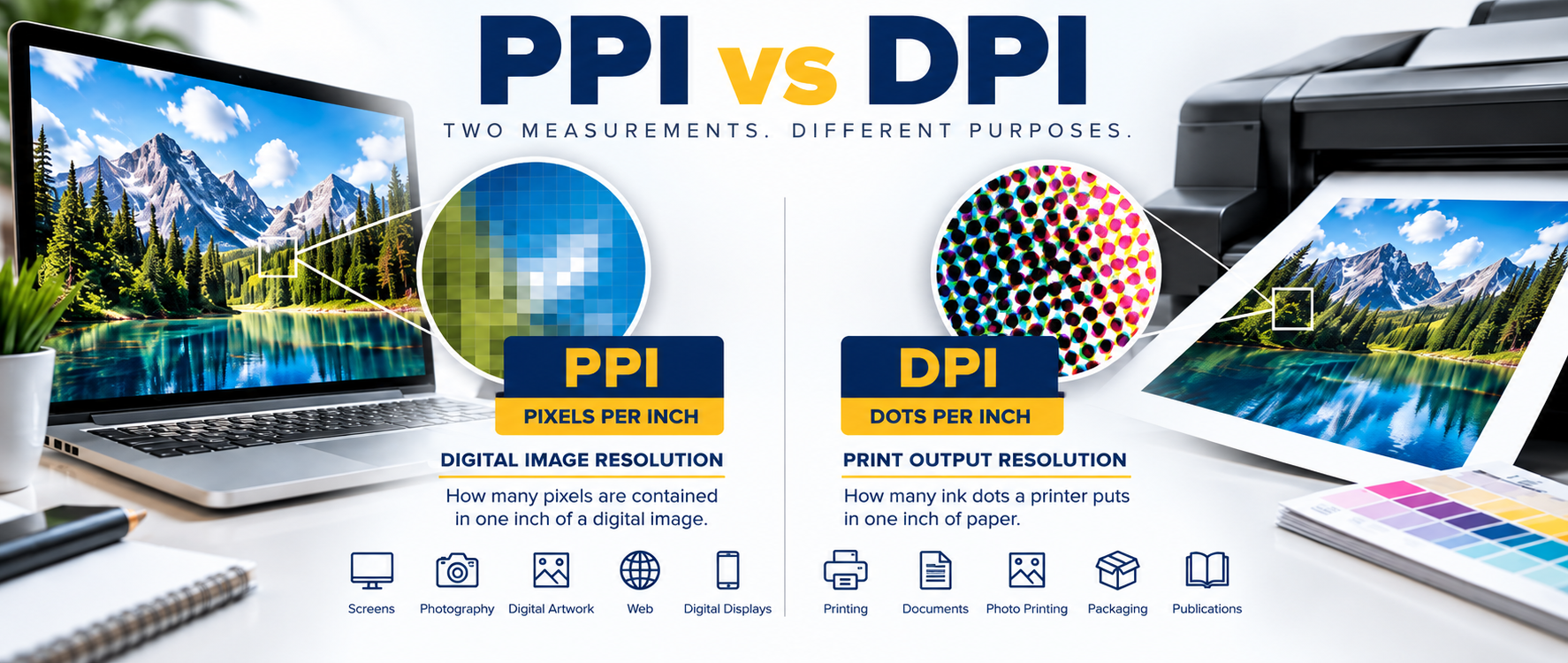
Although PPI and DPI are often used interchangeably in everyday conversations, technically they describe two different things.
Understanding the difference can help you prepare better artwork, avoid poor-quality printing and get sharper results on everything from business cards and brochures to T-shirts, banners, signage and promotional products.
What Is PPI?
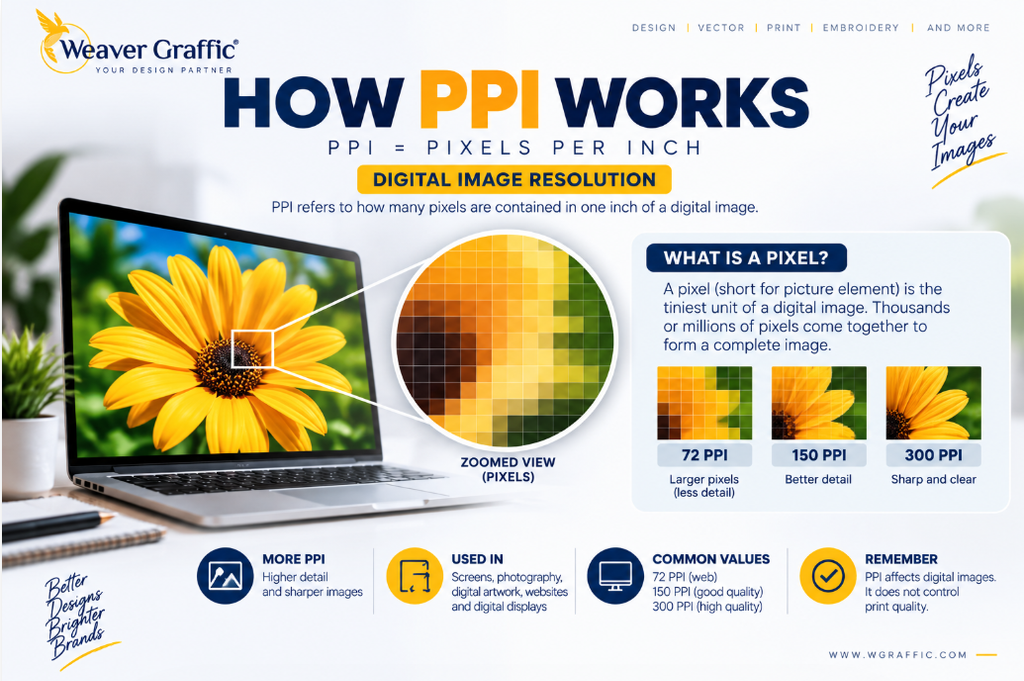
PPI stands for Pixels Per Inch.
It describes the pixel density of a digital image — essentially, how many image pixels are assigned to each inch when the image is displayed or printed at a particular physical size.
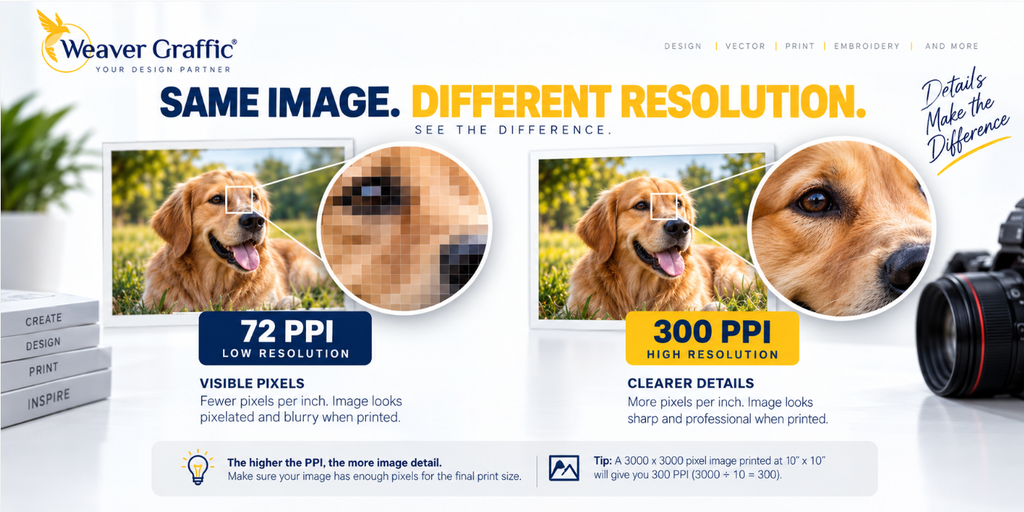
A raster image is constructed from tiny individual pixels. When you zoom far enough into a photograph, JPEG or PNG, those pixels become visible.
The relationship between pixel dimensions, PPI and physical print size is extremely important.
For example, an image measuring:
3000 × 3000 pixels
printed at:
300 PPI
can produce an image approximately:
10 × 10 inches
without resampling.
If you try to make the same image much larger, fewer pixels are available for every printed inch, reducing the effective PPI.
Adobe similarly explains that enlarging an image’s physical dimensions without resampling reduces its resolution because the existing pixels must cover a larger area.
Does Higher PPI Mean Better Quality?
Generally, having enough pixels for the required output size allows an image to retain more detail.
But there’s an important point:
PPI alone does not determine image quality.
The actual pixel dimensions of the artwork matter.
A tiny low-resolution image doesn’t suddenly become genuinely high resolution simply because its metadata is changed from 72 PPI to 300 PPI.
This is a mistake we regularly see when artwork is being prepared for professional printing.
What Is DPI?
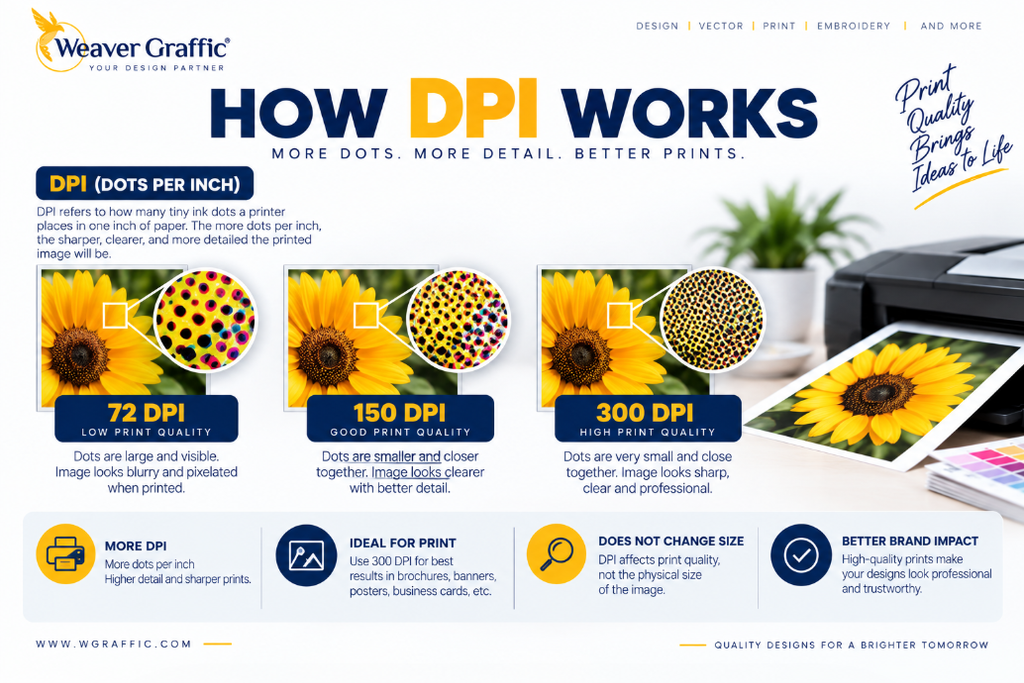
DPI stands for Dots Per Inch.
Unlike PPI, DPI primarily describes printer output resolution — how finely a printer can place dots when reproducing an image.
Think of it this way:
PPI = digital image information
DPI = printer output
When you zoom into a digital photograph, you see pixels.
When examining certain printed images closely, you can see the printed dot pattern used to reproduce the artwork.
Adobe distinguishes the two in the same way: PPI relates to image resolution, while DPI relates to printer resolution.
Is 300 DPI the Same as 300 PPI?
Not technically.
This is probably one of the biggest misunderstandings in graphic design and printing.
People commonly say:
“Please send the artwork at 300 DPI.”
What they frequently need from the designer is a raster image containing sufficient pixels to reproduce the artwork at approximately 300 PPI at the intended print size.
The printer itself may operate at a substantially different DPI.
For example, Adobe notes that many inkjet printers operate at 720–2880 DPI, while an image resolution around 220 PPI or higher can often be sufficient for high-quality photographic inkjet printing.
So a 300 PPI image does not require a 300 DPI printer, and a 1200 DPI printer doesn’t mean your source image needs to be 1200 PPI.
Is 300 PPI Best for Printing?
300 PPI is a widely used target for high-quality, close-viewed print artwork, particularly for items such as brochures, flyers, business cards, photographs, catalogues and other detailed printed materials.
But 300 PPI isn’t a universal requirement.
The ideal resolution depends on factors including:
print size + printing process + artwork type + viewing distance + printer requirements.
A business card viewed from a few inches away requires different image preparation from a large banner designed to be viewed from several metres away.
That is why asking only:
“Is this file 300 DPI?”
doesn’t provide enough information.
A better question is:
“Does this artwork contain enough image information for the required final print size and printing process?”
Why Does My 300 DPI Image Still Look Pixelated?
This happens more often than you might expect.
Suppose you download a small 500 × 500 pixel JPEG from the internet.
Changing its resolution setting to “300” does not automatically recreate all the missing details.
Without appropriate resampling, you’re primarily changing the relationship between the existing pixels and the physical print dimensions. Adobe explains that the total image data remains unchanged unless the image is actually resampled.
Even AI upscaling and resampling have limitations. Software can estimate and generate additional information, but it cannot always perfectly reconstruct the original details of a poor-quality logo or heavily compressed image.
For logos, icons, line artwork and many graphics, vector artwork is often the better solution.
Raster vs Vector: Which Is Better for Printing?
Raster images such as JPEG, PNG, TIFF and PSD are pixel-based.
Vector artwork such as AI, EPS and SVG is constructed using mathematical paths and shapes.
That creates an enormous advantage for many print applications:
Vector artwork can be scaled without becoming pixelated.
A properly prepared vector logo can be used on a small business card and then enlarged for a banner or sign while maintaining clean edges.
That’s why professional printers frequently request files such as:
AI, EPS, PDF or SVG.
Photographs are naturally raster images, so they require sufficient pixel resolution for the final output size.
Logos, typography and simple illustrations, however, are often best supplied as vectors whenever possible.
When Should You Vectorize a Low-Resolution Logo?
Imagine that the only copy of your company logo is a tiny JPEG taken from an old website.
You need to use it for:
- T-shirt or garment printing
- Screen printing
- Embroidery
- Signage
- Vehicle graphics
- Packaging
- Business cards
- Promotional products
- Large-format banners
Simply enlarging that JPEG may create jagged edges and blurry text.
In situations like these, the artwork may need to be professionally redrawn as vector artwork.
At Weaver Graffic, we manually recreate low-resolution artwork into clean, production-ready vector files rather than relying solely on automatic tracing.
Depending on the artwork, the completed files can be supplied in formats such as:
Adobe Illustrator (AI), EPS, PDF, SVG and high-resolution PNG.
How to Check Whether Your Image Is Good Enough for Printing
Don’t judge an image only by how sharp it looks on your monitor.
Before sending artwork for production, check:
1. Pixel dimensions
Look at the actual width × height in pixels.
2. Final print size
A file suitable for a 3-inch print may not contain enough information for a 30-inch print.
3. Effective PPI
Determine how many pixels will be available per inch at the final reproduction size.
4. Artwork type
A photograph and a company logo shouldn’t necessarily be prepared in the same way.
5. Printer specifications
Different printing methods and production equipment can have different requirements.
6. File format
Use vector artwork whenever appropriate for logos and line graphics.
Quick PPI Calculation for Printing
There’s a simple calculation you can use:
Pixels ÷ desired print size in inches = PPI
For example:
A 3600-pixel-wide image printed at 12 inches wide gives:
3600 ÷ 12 = 300 PPI
But if the same file is enlarged to 24 inches wide:
3600 ÷ 24 = 150 PPI
The file hasn’t changed.
The effective resolution changed because the print size changed.
This is one of the most important concepts to understand when preparing images for printing.
PPI vs DPI: The Easy Way to Remember It
| PPI | DPI |
|---|---|
| Pixels Per Inch | Dots Per Inch |
| Describes digital image resolution | Describes printer/output resolution |
| Related to raster image pixels | Related to printing dots |
| Influenced by pixel dimensions and output size | Influenced by printer technology/settings |
| Think IMAGE | Think PRINTER |
The simplest way to remember it:
PPI describes the image. DPI describes the print device.
Do You Need 300 PPI for Large-Format Printing?
Not always.
Large-format graphics such as banners, exhibition displays and some signage are normally viewed from farther away than brochures or photographs.
Because of this, the required effective PPI can sometimes be lower while still producing a visually acceptable result at the intended viewing distance.
The correct resolution therefore depends on the final dimensions, viewing distance, printing method and printer’s requirements.
For important jobs, always confirm the specifications with your print provider before preparing the final artwork.
What File Should You Send to a Printer?
For logos and graphic artwork, your printer may request:
AI / EPS / PDF / SVG
For photographic or raster artwork, common formats include:
TIFF / PSD / high-resolution JPEG / PNG
The correct format depends on the production process.
You may also need to consider:
CMYK or spot colours, bleed, crop marks, fonts, transparency, image resolution and final artwork dimensions.
Preparing these correctly before production can prevent costly reprints.
Need Help With Low-Resolution or Print-Ready Artwork?
If your customer sends you a blurry JPEG, low-resolution PNG, screenshot, scanned logo or old artwork, you don’t necessarily have to start from scratch.
Weaver Graffic provides professional artwork preparation services for printers, embroidery businesses, promotional-product companies, apparel decorators and businesses worldwide.
Our services include vector artwork conversion, logo redraws, print-ready artwork, image cleanup, embroidery digitizing, artwork recreation, mockups and graphic design support.
Whether you have a small JPEG that needs to become a clean vector logo or artwork that needs to be prepared correctly for printing, our team can help.
Send your artwork to Weaver Graffic for a quote and let us prepare the right files for production.